
Why you need to know a website's font
You're deep in a design reference, the typography is doing exactly what you want it to do for a client project, and you have no idea what it's called. This happens to every designer who collects references: a font catches your eye on a live site, in a screenshot someone shared, or in an old bookmark you saved without checking the details. Guessing from a list of similar-looking free fonts wastes time and sometimes gets the pairing wrong. Here are the actual ways to find out, ranked from fastest to most reliable.
Method 1: Right-click and Inspect
This works in every modern browser and needs no extension, so it's the first thing to try when you're on the live page.
- Right-click directly on the text you want to identify and choose Inspect (or Inspect Element).
- In the panel that opens, find the Styles or Computed tab and look for the font-family property.
- The first name in that list is usually the real typeface. Anything after it (like Helvetica, Arial, sans-serif) is a fallback stack in case the primary font fails to load.
The catch: this only tells you the font's name, not always where to get it. If it's a system font or a well-known web font, that's enough. If it's self-hosted or a custom icon font, you'll need to dig a bit further, which is where the next two methods help.
Method 2: A one-click font-identifying extension
If you do this often enough that Inspect feels slow, a dedicated extension saves the extra clicks. WhatFont is the best known one: hover over any text on a page and it overlays the font name, size, and weight directly, no dev tools required. Fontanello does something similar and adds a right-click context menu shortcut. These tools are reading the same computed CSS that Inspect shows you, just presented faster and without the clutter of the full developer panel.
Method 3: Match a font from a screenshot alone
Sometimes you don't have the live page at all, just a screenshot saved from Dribbble, a client's PDF, or an old reference you can no longer trace back to a URL. For that, you need an actual font-matching tool rather than a code inspector. Upload the image to WhatFontIs or Font Squirrel's Matcherator, crop tightly around a clean word or two, and the tool compares the letterforms against its font database. Accuracy depends heavily on image quality: a crisp screenshot at a decent size will usually surface the exact font or a very close match; a blurry or low-resolution crop tends to return near-misses instead of the real thing.
Method 4: Check the page source or CSS directly
For self-hosted fonts, view-source or the Network tab in dev tools can tell you more than the Styles panel alone. Search the page source or stylesheet for @font-face, and you'll usually find the font-family name right next to the actual .woff or .woff2 file being loaded. This is the most reliable method for custom or paid fonts that a site licenses and hosts itself, since those won't always resolve to a name you recognize from Google Fonts or Adobe Fonts.
Method 5: Save the reference so you never look it up twice
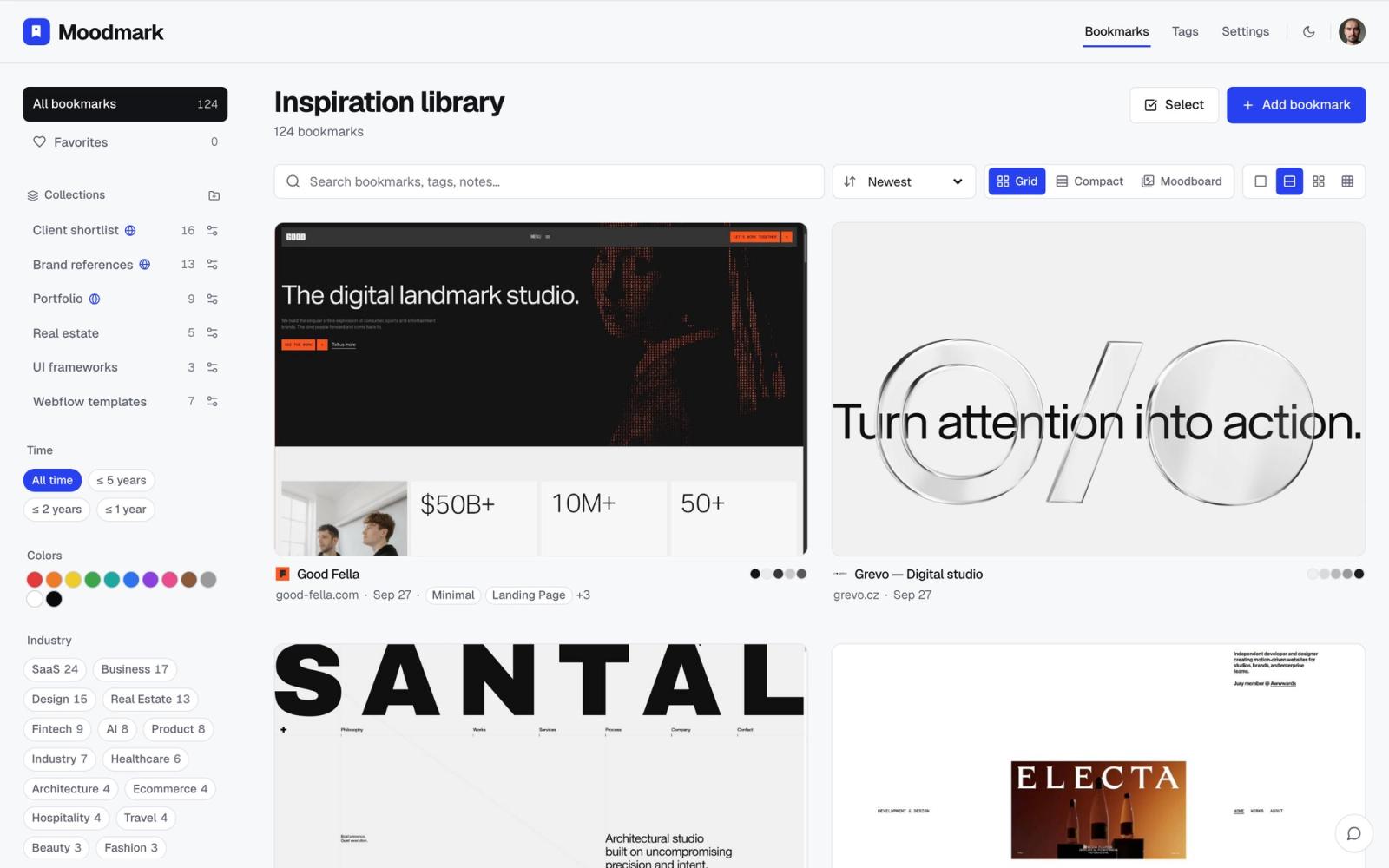
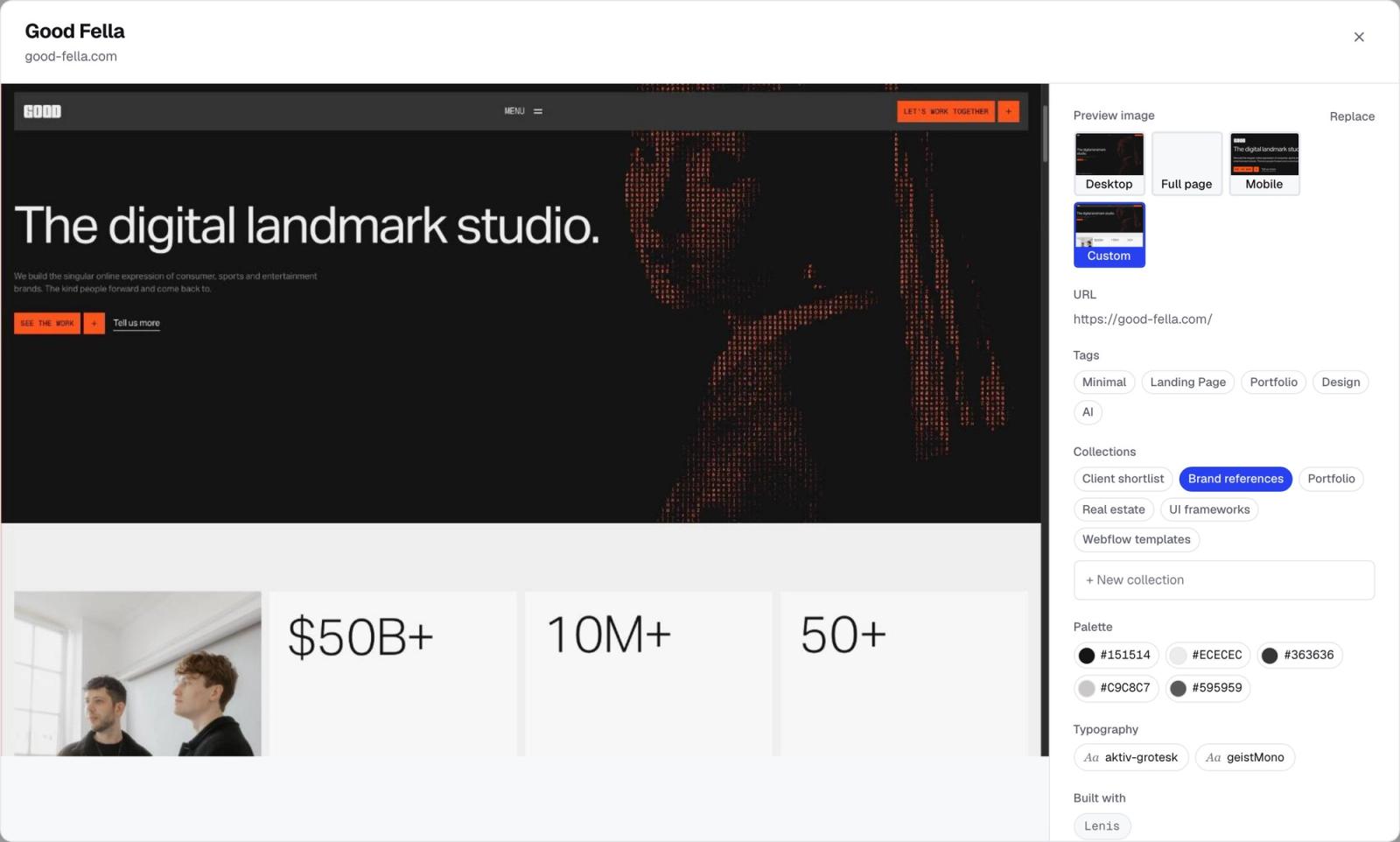
Identifying a font once is only half the problem. The real cost shows up three months later when you're back in a similar project, you remember loving a site's typography, and you have no idea which of your two hundred bookmarks it was. This is less a font-identification problem than a reference-organization one: if the font, palette, and screenshot are captured the moment you save a site, you're never re-inspecting anything. That's the gap a purpose-built visual bookmark manager like Moodmark fills. Save a site with the Chrome extension and it captures the screenshot, the color palette, and the fonts automatically, then files it into a library you can search by how things look, not just by title or tag.
What to do once you've identified the font
Finding the name is the easy part. Before you use it in client work, check a few things:
- Look up the exact name on fonts.google.com or Adobe Fonts to confirm the license terms, since a name can belong to multiple similar-but-different releases.
- If it's not on either of those, note the foundry, custom fonts from paid type foundries usually need a license purchased per project or per seat.
- Check the weight and style you actually saw, not just the family name. A site might be using a specific weight (like Semibold or an italic cut) that changes how it reads in a pairing.
Common mistakes when identifying fonts
- Trusting the fallback stack as the answer. If Inspect shows "Inter, -apple-system, sans-serif" and the font never loaded, you might be looking at the fallback, not the real design.
- Grabbing a free lookalike instead of the actual paid font, which can cause visible drift once you scale up to full pages.
- Missing icon fonts. If Inspect returns a font name full of odd characters or the text renders as boxes, you've likely found an icon font, not body copy.
Building a font reference file as you go
If you regularly collect type inspiration, it's worth treating fonts the same way you treat color palettes: as searchable data attached to the reference, not a fact you re-derive every time. Whether you keep a simple spreadsheet or a visual library that captures it automatically on save, the goal is the same, spend the five minutes once, and never inspect the same site twice.
Questions & answers
What's the fastest way to find a font without installing anything?
Right-click the text, choose Inspect, and check the font-family value in the Styles or Computed panel. It works in every modern browser with no extension needed.
Can I identify a font from just a screenshot?
Yes. Upload the image to a font-matching tool like WhatFontIs or Font Squirrel's Matcherator, crop tightly around clear text, and it will suggest the closest matching typefaces.
Is it legal to use a font I found on another website?
Only if the license allows it. Look up the exact font name on its source (Google Fonts, Adobe Fonts, or the foundry's site) and check the license terms before using it in client or commercial work.
Why does Inspect sometimes show a generic font name like sans-serif?
That's usually a fallback in the font-family stack, shown when the primary font hasn't loaded yet or failed to load. The first name in the list is normally the real typeface; names after it are backups.
