
Why eyeballing a website's colors doesn't work
You've found a site with colors you want to reuse: a competitor's palette for a pitch deck, a client's old site you're matching, or a reference you're building a swipe file from. Guessing the hex values from how they look on screen almost never matches, because monitors, lighting, and memory all shift color perception slightly. What you actually need is the exact value the browser is rendering, and there are a few reliable ways to get it depending on how often you're doing this.
Method 1: Your browser's built-in eyedropper
Chrome, Edge, and Firefox all ship a native eyedropper inside their developer tools, and it's free and already installed.
Chrome and Edge
- Right-click the page and choose Inspect, or press Cmd/Ctrl+Shift+C
- In the Styles panel, click any color swatch next to a CSS property (background-color, color, border, and so on)
- In the color picker that opens, click the small eyedropper icon
- Click anywhere on the page, even outside the element you inspected, to sample that exact pixel
- DevTools shows the hex value in the picker; copy it before moving to the next color
Firefox
The same eyedropper lives inside the color swatch popup in the Rules panel of the Inspector, reached the same way.
This method samples the rendered pixel rather than reading the CSS declaration, so it also works on colors baked into a gradient or an image, not just plain background-color values.
Method 2: A dedicated color-picker extension
If you do this often, a standalone picker extension like ColorZilla or Eye Dropper skips the trip through DevTools. Install one, click its toolbar icon, and your cursor becomes an eyedropper for the whole tab. Most of these extensions keep a running history of the last several colors you've sampled, which is genuinely useful when you're pulling a full palette, background, text, link, and accent colors, from a single page rather than just one swatch.
Method 3: Screenshot plus a design tool's eyedropper
If you already work in Figma, Photoshop, or Affinity, take a full-page screenshot and drop it into a new file. Every one of these tools has its own eyedropper, in Figma it's the I key with the color picker open, that samples any pixel on the canvas, including a pasted screenshot. This is the move when you want the palette sitting alongside other assets in a mood board, since it lands in the same file as your layout notes instead of a separate swatch list.
Method 4: Save the site and let the palette come with it
All three methods above share the same limitation: you redo the work every time you revisit the reference, and the palette you extracted lives disconnected from the screenshot and fonts of the same site, wherever you happened to paste it. That's fine for a one-off. It falls apart once you're collecting references over months, because you end up with the same site's colors sampled three different times in three different files.
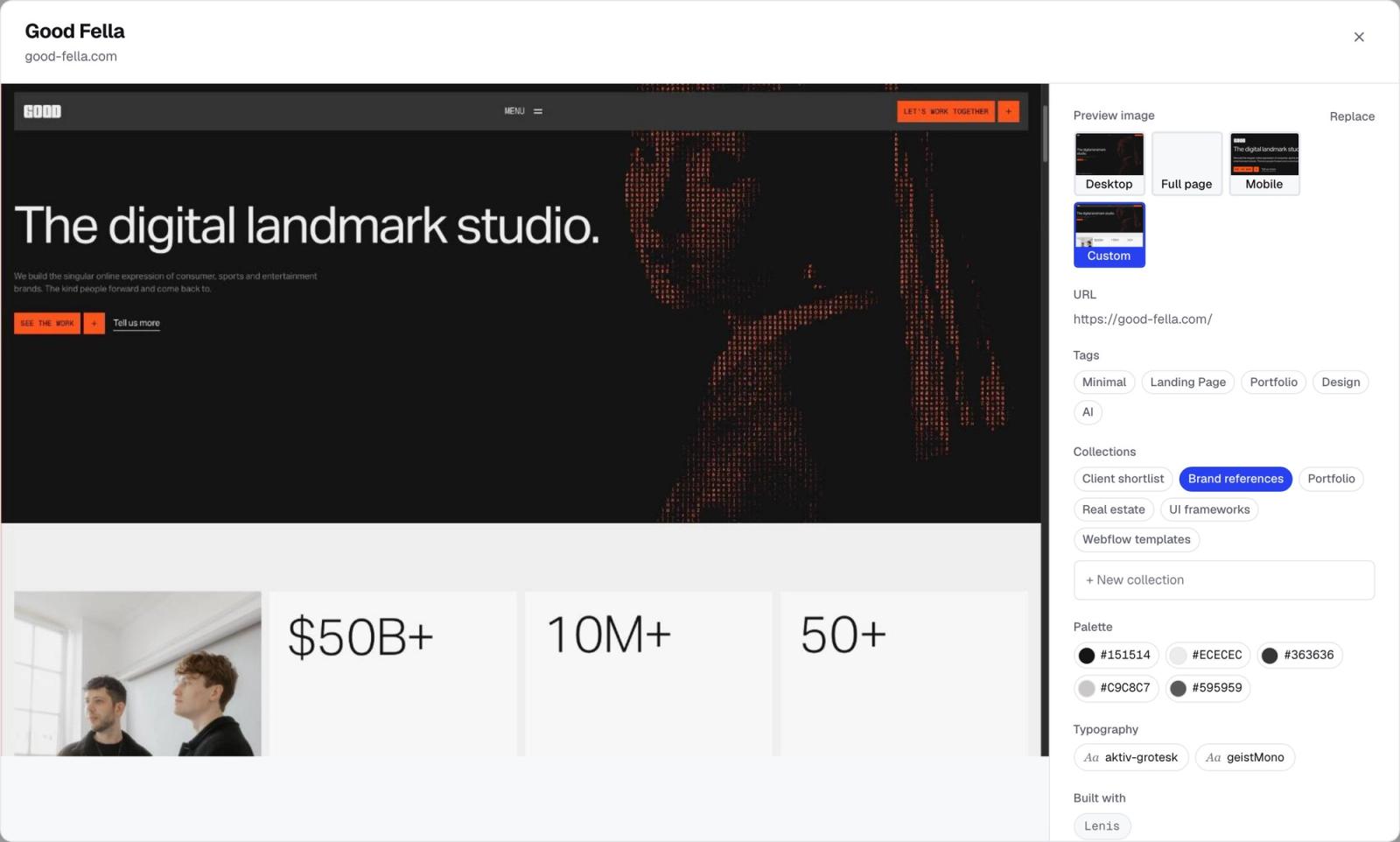
If you're building a library rather than solving a single task, it's worth using a tool that captures the palette automatically at save time. Moodmark does this with a one-click Chrome extension: save any site and it captures the screenshot, the color palette, the fonts, and the tech stack together, so the palette is already attached the next time you open that reference.
The real payoff is filtering, not just extracting
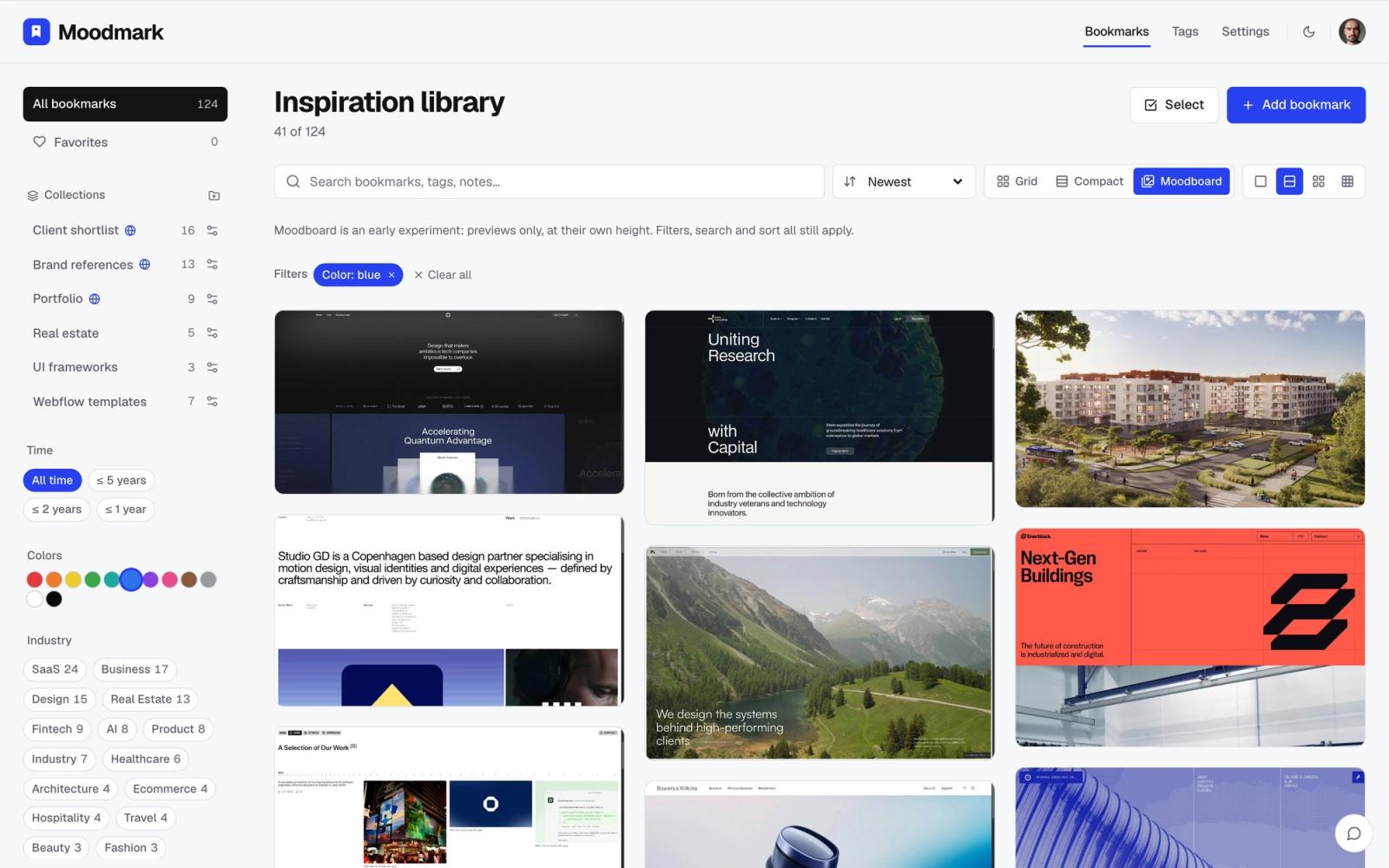
Once palettes are attached to a library of saved sites, you can filter the whole library by color. Instead of remembering a reference by its title, or scrolling past fifty screenshots looking for that warm terracotta portfolio, you filter by color and it's the third result. That's a different problem than pulling one palette from one page: it's finding the right reference again out of hundreds you saved months ago.
How many colors actually make a palette
A single hex value isn't a palette, and grabbing one color from the hero section is where most of these extractions go wrong. Work through the page systematically instead: the main background, the body text color, at least one heading color if it differs, the primary button or link color, and any secondary accent used in tags, badges, or dividers. If the site has a visible hover or dark mode state, sample that too, since it often reveals a secondary accent that never shows up on the resting page. Six to eight swatches is usually enough to actually rebuild the feel of a site, versus the two or three most people stop at.
What to do with the palette once you have it
- Match it exactly: use the hex values as-is when a client wants to echo a specific competitor's look
- Build a palette family: sample the background, text, and two or three accent colors so you capture the range, not just one color
- Check contrast: run the text and background pair through a contrast checker before reusing it, since a palette that reads fine on someone else's layout can fail accessibility on yours
- Feed it into a design system: paste the hex values into CSS custom properties or a Tailwind config so the palette is usable in code, not just a swatch sitting in a design file
Questions & answers
What's the fastest way to get a website's exact color palette?
Use your browser's built-in DevTools eyedropper: press Cmd/Ctrl+Shift+C, click a color swatch in the Styles panel, then click the eyedropper icon and click anywhere on the page. It samples the true rendered pixel, so it works even on colors that live inside an image.
Can I extract a palette from a screenshot instead of the live page?
Yes. Drop the screenshot into Figma, Photoshop, or any tool with an eyedropper and sample it the same way. This is useful once you already have the screenshot saved as part of a reference library, since the palette ends up in the same file as your other notes.
Is there a way to get the palette automatically every time I save a design reference?
Yes, with a bookmarking tool built for design references. Moodmark captures the palette, fonts, and screenshot automatically when you save a site with its Chrome extension, so you don't have to re-extract it later, and you can filter your saved sites by color.
