

Why you'd want to know this in the first place
Designers end up asking what a site is built with for a handful of very practical reasons. You're pitching a client and want to know if their current site is on Webflow, WordPress, or something custom before you promise a redesign timeline. You're a vibecoder scoping a rebuild and need to know if a reference is a static Framer site (easy to approximate) or a heavy React app with a lot of client-side logic (not something v0 or Bolt will one-shot). Or you just want to know whether a beautiful site is running on a stack you already know, so you can go look at how they structured it.
Whatever the reason, there's a real difference between glancing at a site once and actually keeping that answer somewhere you can use it later.
The manual ways to check
Before reaching for a tool, a surprising amount is visible just by looking at the page itself. Right-click and choose View Page Source (or press Ctrl+U / Cmd+Option+U), then scan the raw HTML for signatures most stacks leave behind without meaning to.
- A <meta name="generator"> tag naming WordPress, Wix, Squarespace, Webflow, or Shopify outright
- Script and stylesheet paths like /_next/, /wp-content/, /cdn.shopify.com/, or a webflow.js file
- Class name patterns, Webflow's w-, Tailwind's utility classes, or Bootstrap's col- and btn- conventions
- A data-framework or data-reactroot attribute on the root element, a common tell for React apps
Open DevTools (F12 or Cmd+Option+I) and check the Network tab for anything, you'll often see requests to a headless CMS API, a specific font CDN, or a bundler's chunk-naming scheme that gives away the build tool even when the HTML itself is minified into nothing readable. It works, but it's a few minutes of digging per site, and you have to actually remember to do it.
Browser extensions built for exactly this
Wappalyzer and BuiltWith are the two most-used tools for this, and both work the same basic way: a browser extension that scans the page's code, headers, and cookies against a huge library of known fingerprints, then shows you a breakdown, CMS, JavaScript framework, analytics, hosting, payment processor, right in a popup. Install either one, visit a site, click the icon, and you get an instant answer without opening a single dev tool yourself. WhatRuns works similarly and is worth having as a second opinion, since no fingerprint database catches everything, especially on heavily customized sites where the obvious signatures have been stripped out.
These tools are genuinely good at the one-off lookup. Where they fall short is the moment after: the answer lives in that popup, for that tab, until you close it. If you're checking twenty sites while researching a pitch or collecting references for a rebuild, you either write each stack down manually somewhere or you're re-running the extension on the same site again next week because you didn't.
Accuracy is also worth a caveat. A fingerprinting extension is only as good as its database of known signatures, so a site built on a popular framework but heavily customized can come back vague, or a smaller, newer tool might not be in the database at all yet. Treat the result as a strong lead rather than a guarantee, especially on anything that looks custom-built rather than templated.
The actual problem: the answer doesn't stick to the reference
This is the gap that matters more than which tool you use to check. A tech stack lookup is only useful attached to the specific reference you were evaluating it for. If you're saving a folder of screenshots or a plain bookmark list for a project, the stack you looked up at 2pm on Tuesday isn't attached to anything. It's in your head, or in a separate note, or nowhere, by the time you're back looking at that reference during the actual kickoff call.
How Moodmark captures it automatically when you save
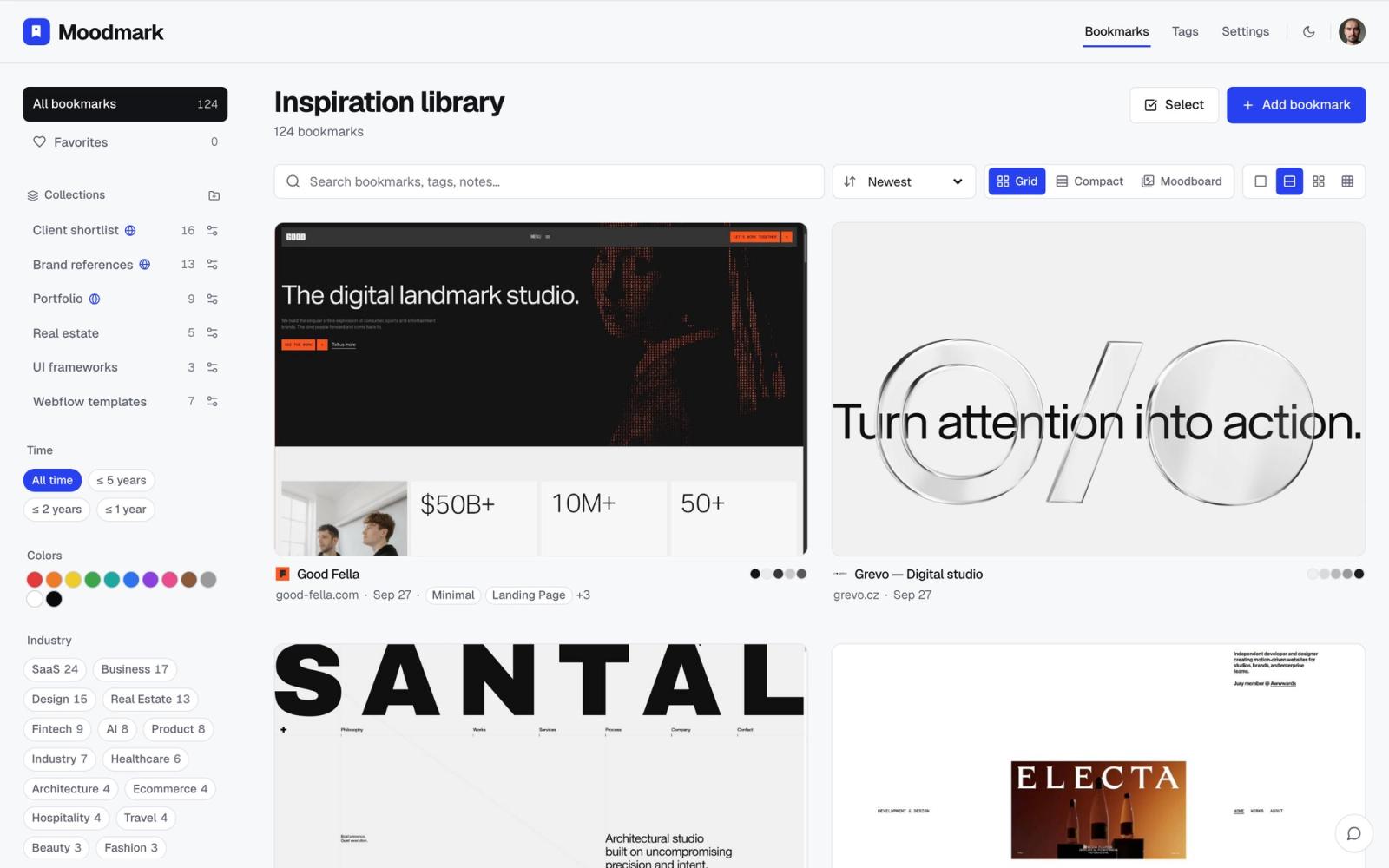
Moodmark's Chrome extension saves a live site in one click, the same one-click flow you'd use for any design reference, and alongside the full-page screenshot, extracted color palette, and fonts, it also detects the tech stack and attaches it to that saved entry permanently. You don't run a separate lookup. You don't copy a result into a notes app. The stack is just there, next to the reference, every time you open it again.
What actually shows up
Open a saved reference's detail view and the tech stack sits right next to the palette and the font list, the same place you'd already be looking to check a color or a typeface. It's framed the same way as everything else Moodmark captures at save time: not something you have to go dig for, just part of what the reference already tells you.
Filtering your whole library by stack
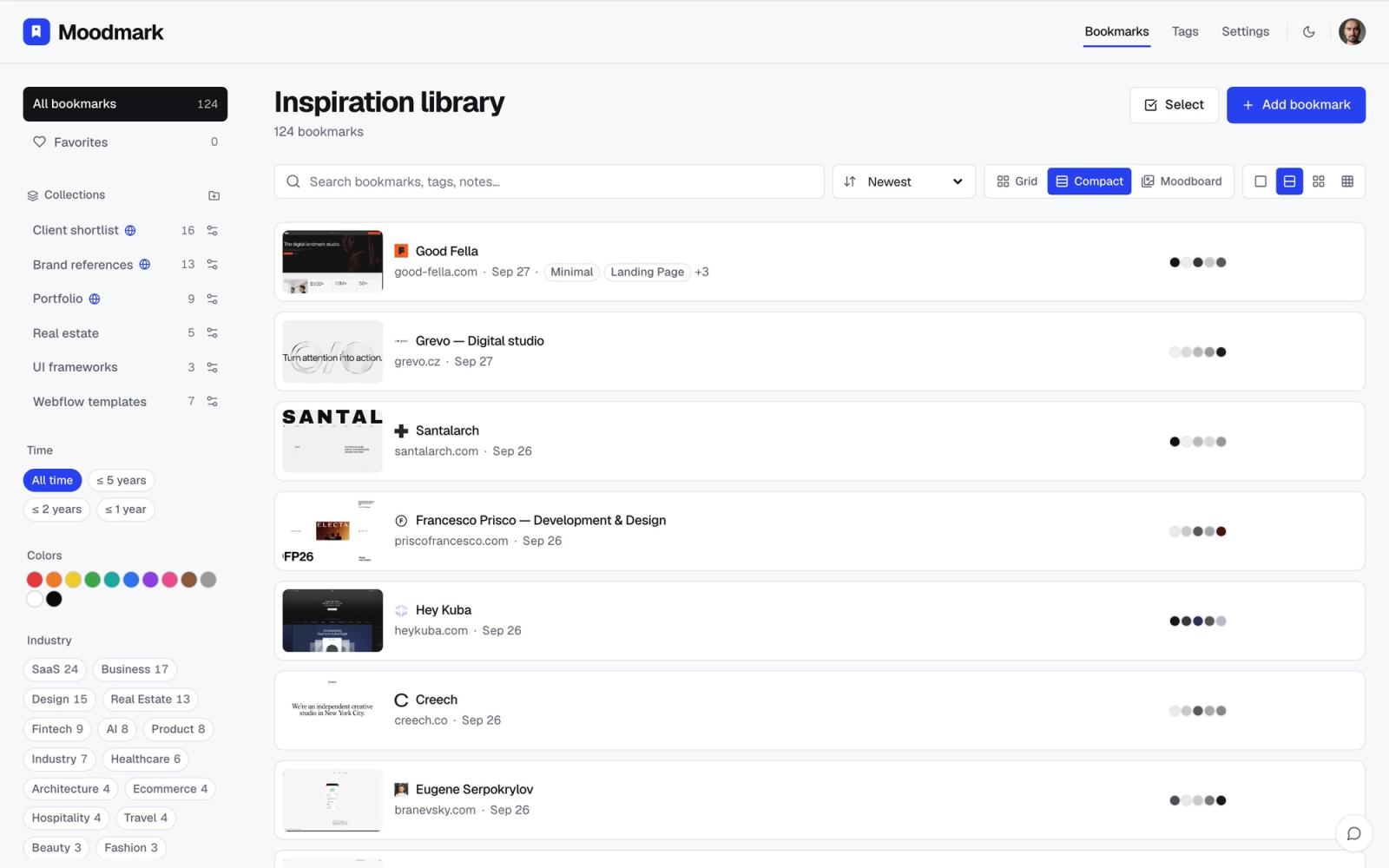
The bigger payoff shows up once you've saved more than a handful of sites. Because the tech stack is stored as structured data on every saved reference, not just text in a popup you already closed, you can filter your library down to only the sites built in Webflow, or only the ones running on a specific framework, instead of opening each one to check. If you're scoping a project and want to see which of your saved references are realistically a weekend rebuild versus a custom engineering effort, that's a filter, not a re-research project.
Where this actually changes a decision
For an agency, this shows up at the pitch stage. Before you quote a client on a redesign, knowing their current site runs on Webflow versus a bespoke Rails app changes what "redesign" even means, a theme swap versus a real engineering project, and it's useful to have that answer sitting with the reference rather than re-checking it the morning of the call.
For a vibecoder, it changes what you reach for first. A reference built as a static site with a handful of CSS classes is a realistic target for a prompt-based rebuild in a tool like v0 or Bolt. A reference running a heavy client-side app with custom state logic is a much rougher starting point, and it's worth knowing that before you sink an afternoon into a prompt that was never going to one-shot it. Knowing the stack across a whole shortlist also helps you pick which reference to start from when you've saved several options for the same project, rather than discovering the gap in complexity only after you've already committed to one.
From tech stack to an actual build prompt
Once you know a reference is feasible to rebuild, Moodmark can take it a step further. Because it already has the palette, fonts, and structure from the same capture, it can turn any saved reference into a design.md, a paste-ready prompt plus CSS and Tailwind design tokens for AI builders like v0, Cursor, Lovable, or Bolt. The tech stack read is what tells you whether a reference is worth prompting from at all; the design.md is what you hand the builder once you've decided it is.
None of this requires a separate workflow. It's the same one-click save you'd do for any reference, with the stack already part of what comes back.
Questions & answers
What's the quickest way to check what a single website is built with?
Install a browser extension like Wappalyzer or BuiltWith and click it on the site. It fingerprints the CMS, framework, hosting, and other services from the page's code and gives you an instant breakdown without opening dev tools.
Why doesn't view-source always show the tech stack clearly?
Many modern builds minify or bundle their code, stripping out the readable class names and comments that would otherwise give the stack away. A fingerprinting tool checks far more signals than a human scanning raw HTML, including request patterns and headers, so it catches stacks that a quick read of the source won't.
Does Moodmark replace a tool like Wappalyzer?
For a one-off check on a single site, Wappalyzer is faster. Moodmark's advantage is that it detects the stack automatically when you save a design reference, so the answer stays attached to that reference and filterable across your whole library instead of living in a popup you already closed.
